Reconnect your appliance after changing Wi-Fi
If your appliance stopped connecting after a router or Wi-Fi change, set it up with the current network details.
When to reconnect
- Your home Wi-Fi network name or password has changed.
- Your router has been replaced and the appliance still has the previous connection details.
Reconnection steps
- Have your new Wi-Fi details ready. Check the home network name and Wi-Fi password.
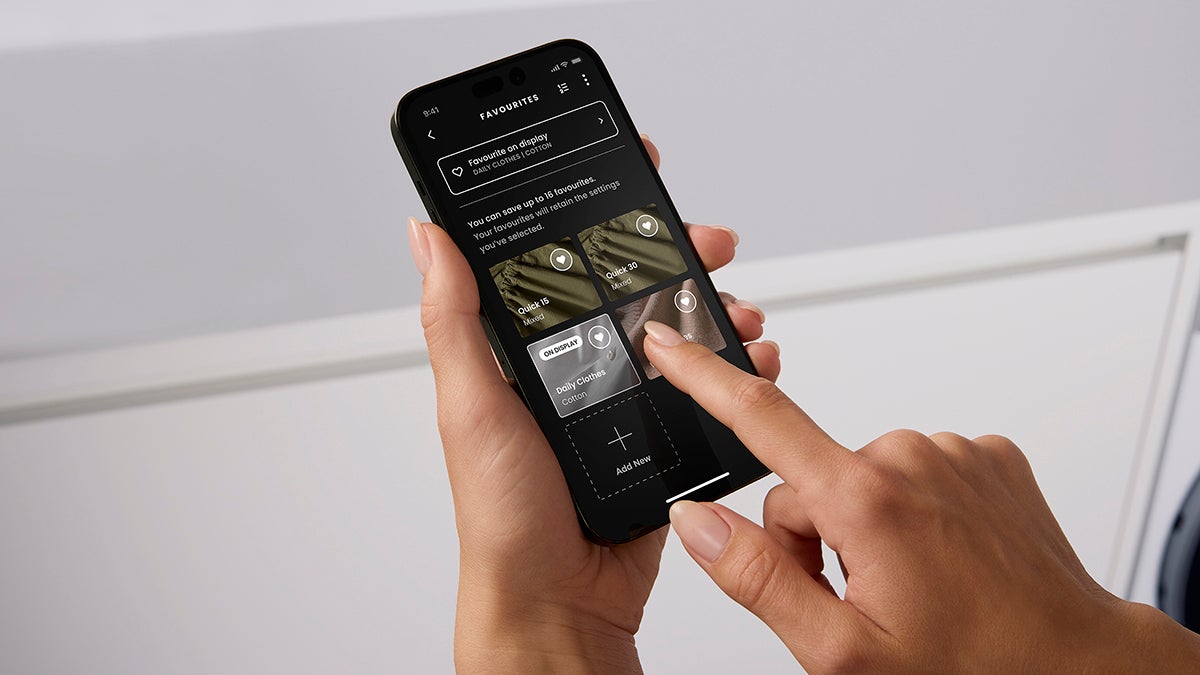
- Select the offline appliance. Open SmartHQ and select the appliance shown as offline.
- Remove it from SmartHQ. Open the appliance settings or options menu and select Remove Appliance or Delete Appliance. Confirm when prompted.
- Sign out, then sign back in. Use your existing SmartHQ account details.
- Add the appliance again. Select Add Appliance. Put the appliance into pairing mode when prompted, using the controls shown in SmartHQ for your model.
- Connect to the new Wi-Fi network. Select the new home network and enter its password when SmartHQ asks.
- Check the connection. Return to the appliance list and confirm it is listed and shows as connected.
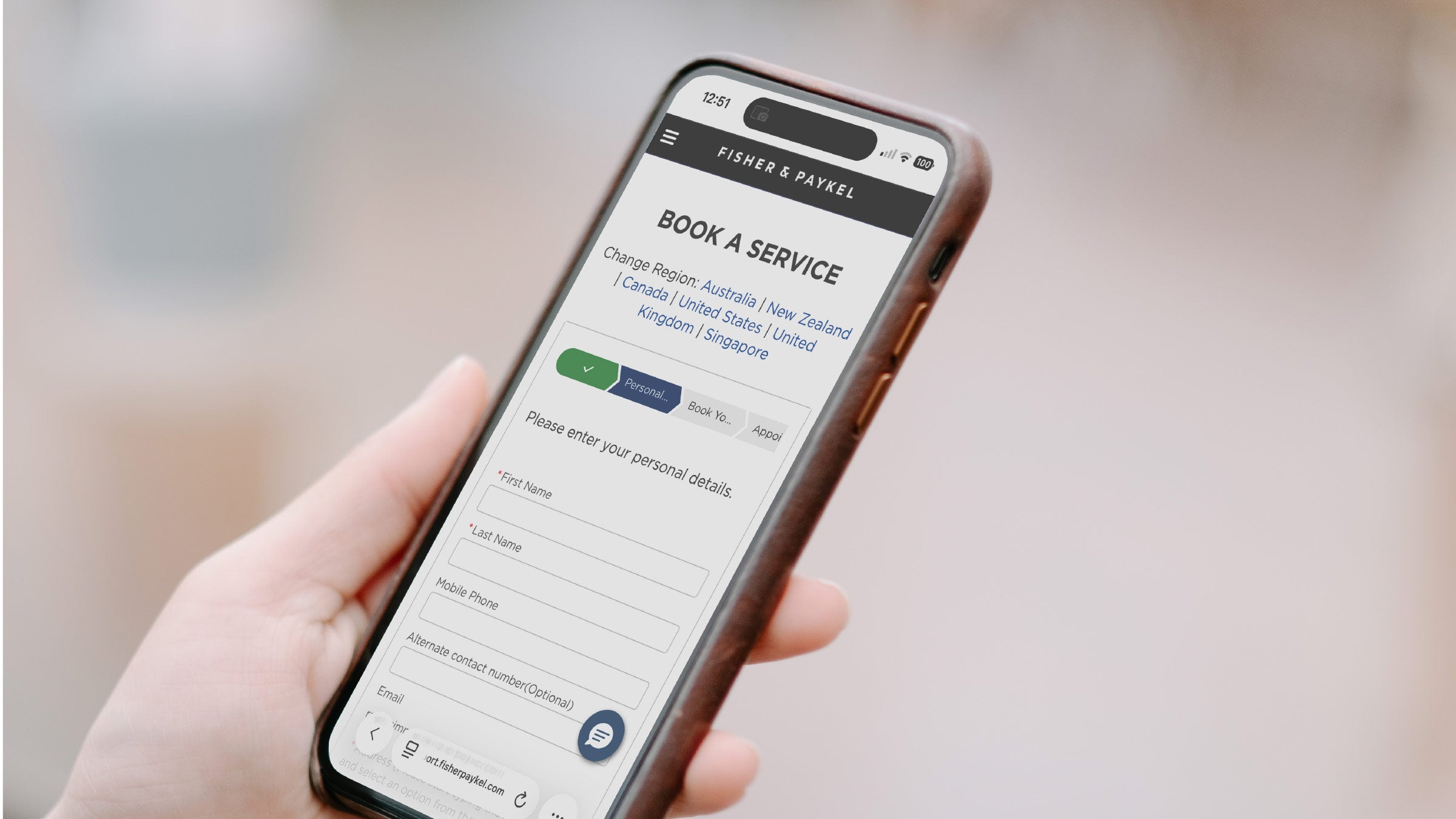
- If pairing times out, the appliance cannot be found or it stays offline, contact Haier support (Australia or New Zealand).
Helpful Tips
- Removing an appliance from an app account is different from resetting the appliance or deleting your account.
- During setup, use the pairing controls shown in SmartHQ for your model.
- Before contacting support, note what changed: router, network name, Wi-Fi password or another network setting.